Find the required width, height, accepted format, and maximum file size. Different websites may ask for different settings.
Fit your photo
Enter the numbers, then crop or add padding. Make sure important details remain visible in the preview.
Check and download
Verify the actual file size and dimensions. Review sharpness and any additional requirements before submitting.
Example: 300 × 400 px · under 100 KB
Set width to 300, height to 400, maximum size to 100, and format to JPG. These are example settings, not the requirements of any specific institution. Check that the result is 300 × 400 px and no more than 100,000 bytes.
MODUNARU / WORKED EXAMPLES
Real conversion examples using the same photo
We applied different requirements to one source image. Compare cropping with white padding, then see what happens when the file size limit cannot be met.
Every photo below is a programmatically generated synthetic test image, not a real person.
Measured on: These results were produced with the photo tool in the in-app browser on a PC.
Start with the original
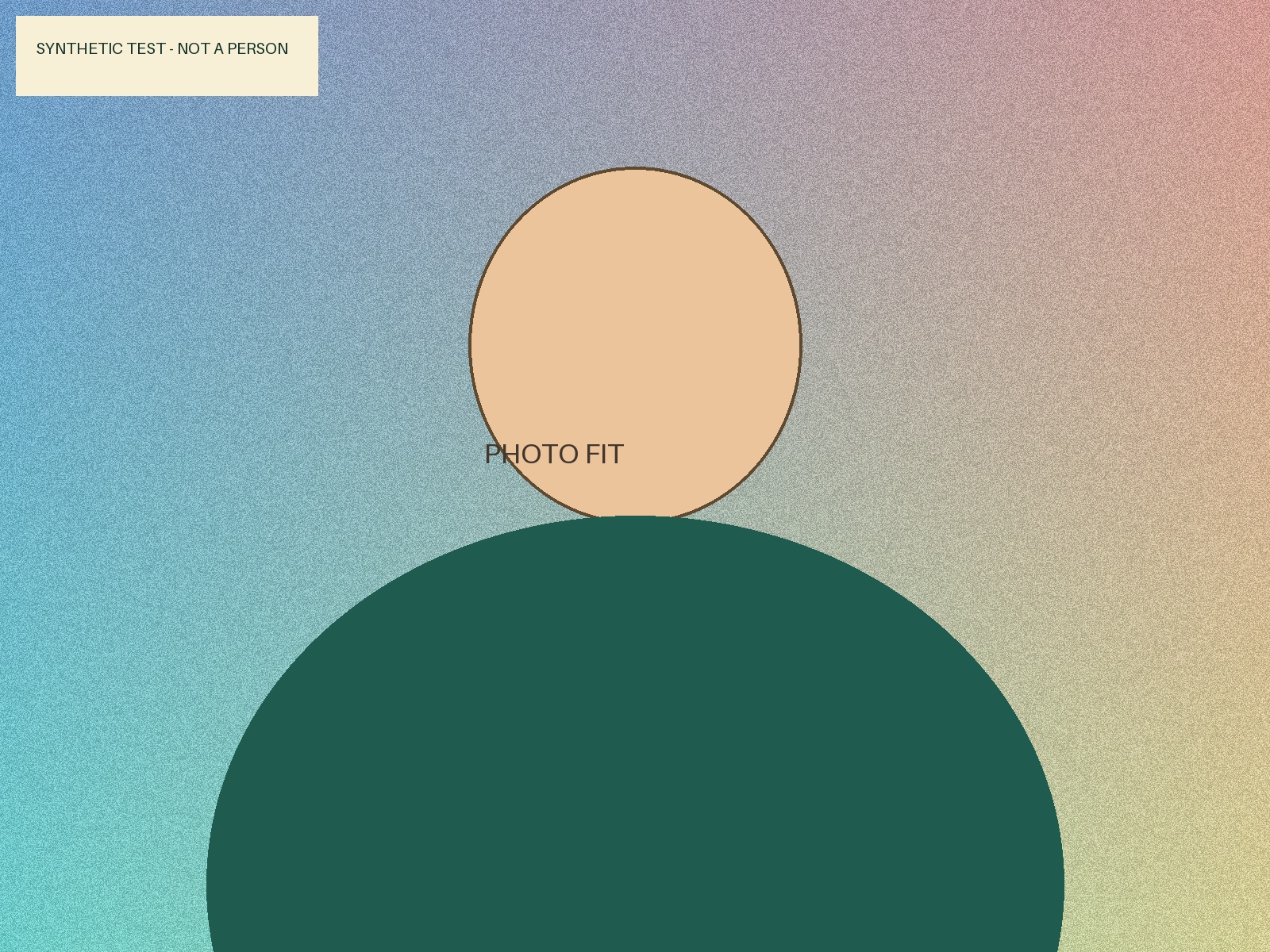
The synthetic source used for this comparison. Not a real person.
Original dimensions
1,600 × 1,200 px
Original file
JPG · 1,059,613 bytes (1,059.61 KB)
Download the original, then enter the requirements below in the photo tool to try the comparison yourself.
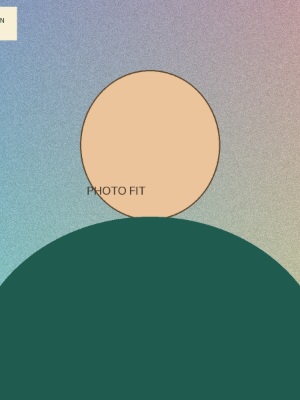
The cropped synthetic test image. Not a real person.
Requested settings
JPG · 300 × 400 px · Fill & crop · Maximum 100 KB (100,000 bytes)
Actual dimensions and format
300 × 400 px · JPG
Actual file size
25,339 bytes (25.34 KB)
The photo keeps its proportions and fills the frame. In this example, some content on the left and right is removed. Check that important details remain.
Requirements met
Fit whole photo: add white padding
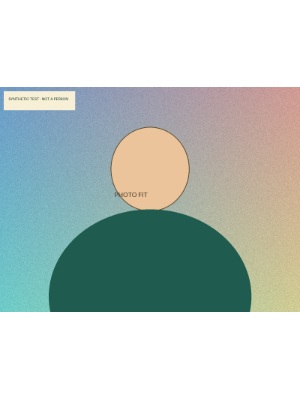
The padded synthetic test image. Not a real person.
Requested settings
JPG · 300 × 400 px · Fit whole photo · Maximum 100 KB (100,000 bytes)
Actual dimensions and format
300 × 400 px · JPG
Actual file size
17,089 bytes (17.09 KB)
The entire source is kept, with white padding in the remaining space. In this example, padding appears above and below the photo. Check that your receiving service allows padding.
Size limit not met
When the size limit cannot be met
Requested settings
JPG · 600 × 600 px · Fill & crop · Maximum 1 KB (1,000 bytes)
Attempted dimensions and format
600 × 600 px · JPG
Attempted file size
5,198 bytes (5.2 KB)
The tool could not meet the maximum size within the compression range it searches in this example. It kept the requested pixel dimensions and blocked downloading.
What to try next
If your receiving service allows it, increase the maximum file size and convert again.
If smaller pixel dimensions are allowed, change the width and height requirements and convert again.
Keep your original and check the receiving service’s requirements before changing the values.
These measurements are examples for the synthetic image above. Results can vary by photo, settings, and browser. The example numbers are not the rules of any particular institution and do not guarantee photo acceptance.
GOOD TO KNOW
A few helpful answers
Does a 100 KB photo keep the same quality?+
Compression may remove detail. We compare several encoding quality levels within your file size limit. Inspect the result at full size and keep your original.
What if the photo cannot fit the size limit?+
We do not silently reduce your requested pixel dimensions. If the output is too large, download stays disabled and we show the reason. Increase the size limit or reduce dimensions only if your submission rules allow it.
Will an application or passport service accept the photo?+
This tool checks pixels, file size, and format only. It does not validate face proportions, background, photo age, or DPI. Always check the requirements of the receiving service.
Do you store my photos?+
Photos and converted files are not sent to a server. Choosing Save or share file lets you pass the converted photo to an app you select. This version has no ads, analytics, or tracking scripts. Closing the page clears your working session. Files you download stay on your device.
Can I use HEIC files from my iPhone?+
This version supports one JPG, PNG, or WebP photo at a time. HEIC, GIF, and animated images are not supported. Save a still JPG or PNG version first.